


Your patient portal passed its WCAG AA scan. The report says "no issues found." And yet older patients still call the clinic to ask where their lab results are, give up on the intake form halfway, and miss the refill button sitting in light gray at the bottom of the screen.
We design patient-facing apps and platforms like the Carely patient portal and the Luma patient app, so we've seen how small visual decisions on intake, booking, and lab-result screens decide whether a patient finishes the task. For this guide, we spoke with Anastasiia Mozharovska, a Product Designer whose past work includes accessibility products at ex-UserWay (acquired by Level Access).

At UserWay, Anastasiia designed tools that show product teams what blocks people with disabilities: scanners, checkers, and remediation flows. When she looked at who actually opened the accessibility widget on customers' sites, she expected screen reader users.
Anastasiia Mozharovska
"A big part of them weren't screen reader users. They were people who needed bigger text, stronger contrast, a bigger cursor. Very often older people. That changed how I looked at every screen I designed after that."
Vision impairment is common among the people healthcare products serve. The World Health Organization estimates that at least 2.2 billion people worldwide have a near or distance vision impairment. In the United States, the CDC reports that approximately 7 million people have vision impairment, and 4.2 million Americans aged 40 or older have vision impairment that glasses or contacts cannot correct. People with reduced vision are also the patients who book appointments, manage medications, and read test results in healthcare apps and portals.
In this article, we explain what low vision and aging actually change about how a person sees and uses a screen, and the contrast, type, layout, and interaction decisions that sit above the WCAG (Web Content Accessibility Guidelines) floor. WCAG is the standard most teams test against. It is the minimum, not the method.
Key takeaways
- WCAG conformance is a measurable floor: a product can pass every automated check and still be too tiring for a low-vision or older patient to finish a task.
- Low vision is not one experience: central loss, peripheral loss, and blurred vision break a screen in different ways, so design for the combination of needs, not an average user.
- Aging adds slower processing, reduced fine motor control, and fear of irreversible mistakes on top of vision changes, so forgiving targets, plain language, and clear undo matter as much as contrast.
- Never let color carry meaning alone: every status, flag, and error needs a word and an icon, and critical health data should aim for 7:1 contrast where feasible.
- Use 16px as the floor for body text (16 to 18px is better), in scalable units, and test every release at 200% zoom, the largest phone text size, and high contrast.
What is visual accessibility for low-vision and older patients?
Visual accessibility is designing a product so that people can actually see, read, and act on what is on the screen. It is a broader and harder target than passing WCAG's pass/fail success criteria, because it is measured by whether a real patient finishes a real task, not by whether a rule is met.
Low vision is not the same as blindness. The National Eye Institute defines it simply: "Low vision is a vision problem that makes it hard to do everyday activities". Usable vision remains, but it may be reduced, blurred, patchy, or narrowed. Many people with low vision never use a screen reader. They zoom in, enlarge text, raise contrast, and lean closer to the screen.
The conditions patients bring to a healthcare product are common and often age-related:
- Presbyopia: the gradual, age-related loss of near focus. WHO counts 826 million people with near vision impairment from presbyopia.
- Cataracts: clouding that blurs vision and increases sensitivity to glare.
- Age-related macular degeneration (AMD): loss of sharp central vision.
- Diabetic retinopathy: patchy or blurred areas across the visual field.
- Glaucoma: gradual loss of peripheral vision.
Visual accessibility has to go beyond WCAG because of how conformance is tested. WCAG's success criteria are necessary and testable, but conformance testing checks rules one at a time. It does not capture combined effects: low vision plus anxiety about a test result, plus a hand tremor, plus unfamiliar medical terms.
Why doesn't WCAG accessibility alone guarantee usability for these patients?
WCAG accessibility sets a measurable minimum; it does not test whether a patient with reduced vision can complete a task under real conditions. WCAG is organized around four principles, known as POUR: content must be Perceivable, Operable, Understandable, and Robust. At level AA (the level most organizations target, between the basic A and the strictest AAA), WCAG 2.2 (the current version as of 2026) asks for these vision-related checks:
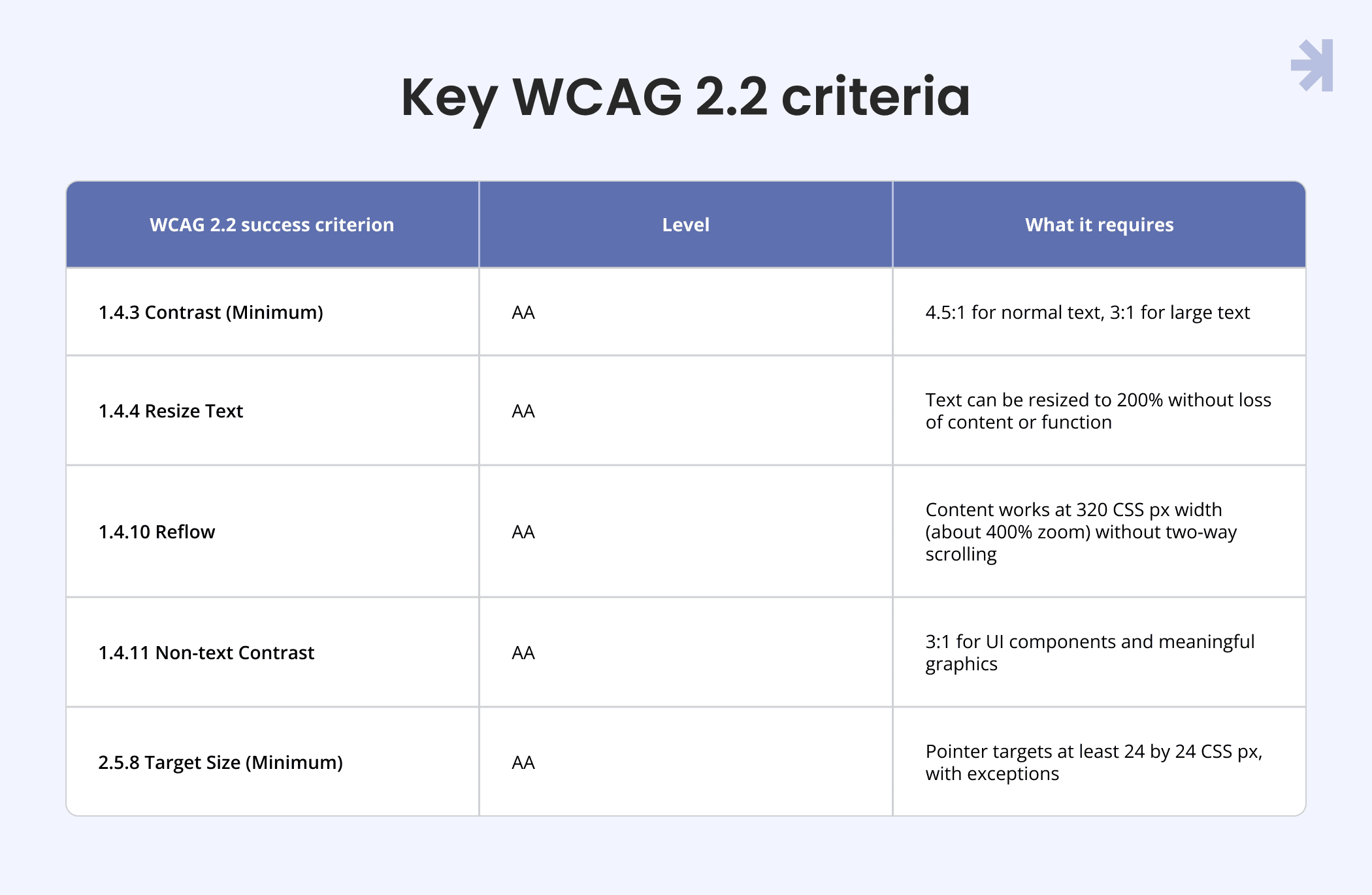
A product can meet every row in this table and still be hard to use. When Anastasiia worked on the Accessibility Checker at UserWay, the scan result was the center of the page, and customers loved seeing the number go up. That is where she learned the most costly thing about "compliant" products.
Anastasiia Mozharovska
"A passing score can become the problem. [...] A lot of things that make a page tiring for low vision simply don't show up in an automated scan. Thin font weights. Huge areas of bright white. A sticky header that eats half the screen once you zoom in."
Anastasiia Mozharovska
"The costly part is the false confidence. A team sees 'no issues found' and stops looking. The real user doesn't get an error message. They just get tired, give up, and call someone for help."
Where a WCAG pass still fails a low-vision patient
A WCAG pass still fails a low-vision patient when the product breaks under the settings that patient depends on. In healthcare products, that usually means dense intake forms, long unbroken instructions, low-contrast disabled and placeholder states, and icon-only actions. The pattern Anastasiia saw most often was a product that looked fine until someone changed one setting.
Anastasiia Mozharovska
"Button labels overflowed and got cut. Icons drawn as background images disappeared on a dark theme. Focus outlines that were fine on white became invisible. Nothing was 'wrong' under the audit, but the user who actually needed those settings couldn't finish a form."
To catch these failures, test every key patient flow with enlarged text, dark mode, and high contrast turned on, and check that labels don't overflow, icons don't disappear, and focus outlines stay visible. Her team at UserWay made the same mistake in its own product. In an early version of the Accessibility Checker results, issue severity was shown mostly through small colored chips. It passed contrast, but for someone with reduced color or contrast sensitivity, critical and minor looked almost the same.
Anastasiia Mozharovska
"We added icons and plain text labels next to the color, made the chips bigger, and grouped results so the most serious ones came first. It sounds small. It changed how fast people found what to fix."
An abnormal lab flag in a patient portal needs the same treatment as a severity chip: a word, an icon, and a position that puts it first.
What a design review checks that an automated scanner can't
An automated scanner checks whether something exists; a design review checks whether it makes sense to a person. Teams often treat these three checks as the same thing:
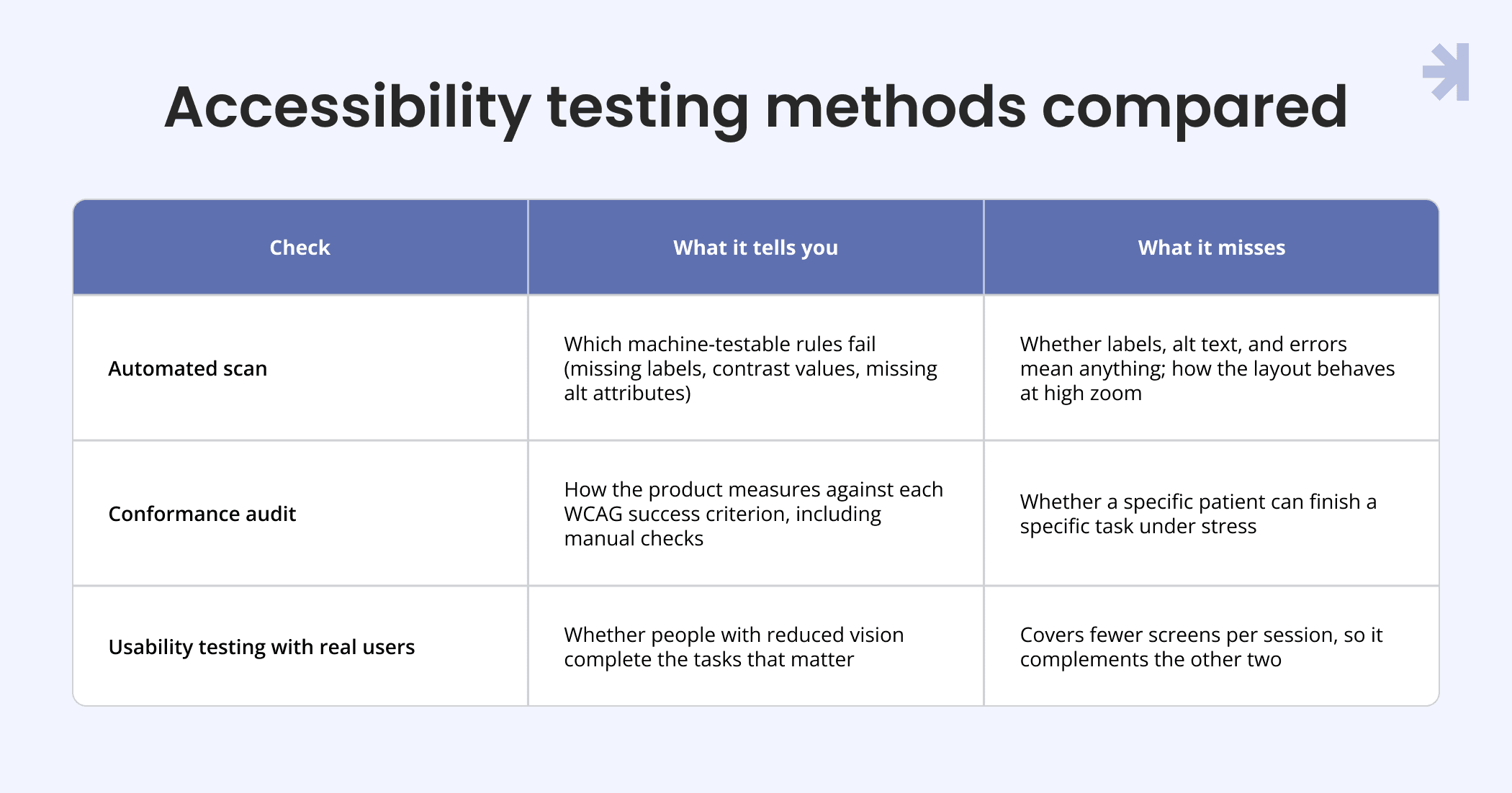
None of these checks gives a legal position on its own; for questions about disability law, talk to your own counsel.
Anastasiia Mozharovska
"An image described as 'image'. A button that just says 'Click here'. Five links in a row that all say 'Read more'. An error that says 'Invalid input' without saying what's wrong. All of it passes the scan. None of it helps a real person, especially someone who can't see the page well and depends on those words."
Anastasiia's rule for automated accessibility scans is simple: the scan tells you something is there. Only real people can tell you if it makes sense.
In healthcare, meaning has to be specific. A screen reader reads only what you wrote for it, and an automated tool, or even AI, can tell you that alt text exists but not whether it is accurate.
Anastasiia Mozharovska
"In healthcare that's not 'chart', it's 'your blood sugar was above the normal range three times this week'. The same goes for buttons and icons: 'button' says nothing, 'Download your lab results' says everything."
In practice, write alt text, button labels, and error messages that state the meaning and the next step, not the type of element.
How does low vision change the way patients use a healthcare product?
Different eye conditions take away different parts of the visual field or different kinds of clarity, so "low vision" is not one experience and design has to account for several. Patients rarely tell a product what they have, and many don't know the medical name.
Anastasiia Mozharovska
"A website visitor doesn't tell you they have glaucoma, and often doesn't know the medical name. They know what's hard: small text, finding the link, staying focused."
Because patients describe needs rather than diagnoses, Anastasiia's team at UserWay didn't split users by diagnosis. The accessibility widget is organized into profiles built around needs, such as Low vision, Color Blind, Motor Impaired, and Cognitive & Learning, and every feature is also available on its own. One click for people who just want it to work, full control for people who know what helps them. Organizing around needs instead of diagnoses was the real design decision. Mapped to the three main patterns of low vision, here is what breaks on a screen and what to do about it. These are design implications, not clinical guidance.
Central vision loss (macular degeneration)
With central vision loss, a patient can't read small text or fine detail straight ahead, so they zoom in heavily and see only a small piece of the screen at a time. In a lab-result table, the test name and its value can end up on different "screens" of the magnified view.
Anastasiia Mozharovska
"What breaks is distance: a label far from its value in a wide table, a 'Save' button off-screen at 400% zoom. Keep related things close."
Design response: larger type, labels directly next to values, stacked rows instead of wide tables on small screens, and primary actions that stay near the content they act on.
Peripheral vision loss (glaucoma)
With peripheral vision loss, the edges of the screen effectively disappear, so anything placed there is never seen. For a patient filling in an intake form, an error summary at the top or a toast in the corner may as well not exist.
Anastasiia Mozharovska
"The edges are gone, so toast notifications, error summaries at the top of a form and badges in the header are simply never seen. Put the message next to the thing that caused it."
Design response: a simplified layout with fewer competing elements, inline errors next to the field, and confirmations placed where the patient is already looking.
Patchy or blurred vision (diabetic retinopathy, cataracts)
With blurred or patchy vision, contrast and glare become the main barriers. Fine gradients, thin strokes, and light gray text fade out first, which is a problem when the refill button is a light outline on a bright white background.
Anastasiia Mozharovska
"Pure white feels like a lamp in the face, and thin fonts and light gray placeholders vanish."
Design response: strong contrast, solid buttons with text labels, medium or heavier font weights, and glare-resistant surfaces such as an off-white background or a supported dark mode.
Real patients often combine central, peripheral, and contrast needs, so design for the combination of needs, not for an average user. And the accessibility controls themselves have to be accessible too, which is why the UserWay widget has an Oversized Widget toggle.
How do you know an accessibility redesign worked?
An accessibility redesign has worked when people finish the task without asking for help. Anastasiia's clearest example is the accessibility add-in for MS Word that her team designed. An Office add-in lives in a narrow task pane beside the document, and many people already use Windows display scaling at 150% or 200%, which makes that pane even more cramped. The team designed for the narrow column at high scaling first: one issue at a time instead of a dense list, text labels instead of icon-only buttons, and a clear "fixed" state. They also checked it with Windows high contrast themes, because custom colors in an add-in can disappear completely there.
Anastasiia Mozharovska
"How did we know it worked? People finished the remediation flow without asking support where the next issue was. For a document tool, that is the metric that matters."
A patient portal has an equivalent metric: patients finish booking, refills, and result reading without calling the clinic.
What does designing for older adults in healthcare actually require?
Designing for older adults requires more than better contrast, because aging also brings slower processing of dense information, reduced fine motor control, and lower tolerance for irreversible mistakes on a health task. These changes compound with vision loss. Almost everything gets slower, and that is fine. The design has to be fine with it too.
Anastasiia Mozharovska
"There's no 'older adults' profile in the widget, and that says a lot. An 80-year-old often needs bigger text from Low vision, bigger targets from Motor Impaired and calmer pages from Cognitive & Learning, all at once. Aging is a combination, not a category."
Larger, more forgiving tap targets and spacing
Older patients need bigger tap targets with more space between them, because reduced fine motor control turns small, crowded controls into mis-taps. WCAG 2.2 AA sets 24 by 24 CSS pixels as the minimum (2.5.8); the stricter AAA criterion 2.5.5 asks for 44 by 44, which is the better target for a patient product. Avoid drag-and-drop as the only option, tiny swipe gestures, and anything that appears only on hover.
Plain language and short, single-idea sentences
Plain language reduces the effort of reading on top of the effort of seeing. Replace medical jargon with everyday words, keep one idea per sentence, and put the action first: "Take 1 tablet each morning" instead of a paragraph about dosing schedules.
Reducing memory load across screens
Patients should never have to hold information from one screen to use it on the next. That means no timeouts in the middle of a form, no carousels that move on their own, one main task per screen, and no codes to remember from the previous screen.
Clear, recoverable error states instead of silent failure
Older patients often avoid any action they think they can't take back, so recovery has to be visible. No widget fixes this one; it's a product decision.
Anastasiia Mozharovska
"Many older users are afraid to press a button they can't take back. Give them clear undo, drafts that save automatically, and confirmations in plain words ('You are cancelling your appointment on 14 March with Dr. Lee'), not just 'Are you sure?'."
Usability research with older adults changes too. Sessions take longer, so Anastasiia plans fewer tasks per test, ideally on the person's own device. If your team is designing for an older patient population for the first time, start there:
Anastasiia Mozharovska
"Recruit real users from the age range, and look at what their devices are already set to before you show them anything. Text size, zoom, dark mode, a magnifier. That tells you more than any persona."
Before a usability test with older adults, note the text size, zoom, dark mode, and magnifier settings participants already use, and test with those settings on.
What color contrast ratio does a healthcare product actually need?
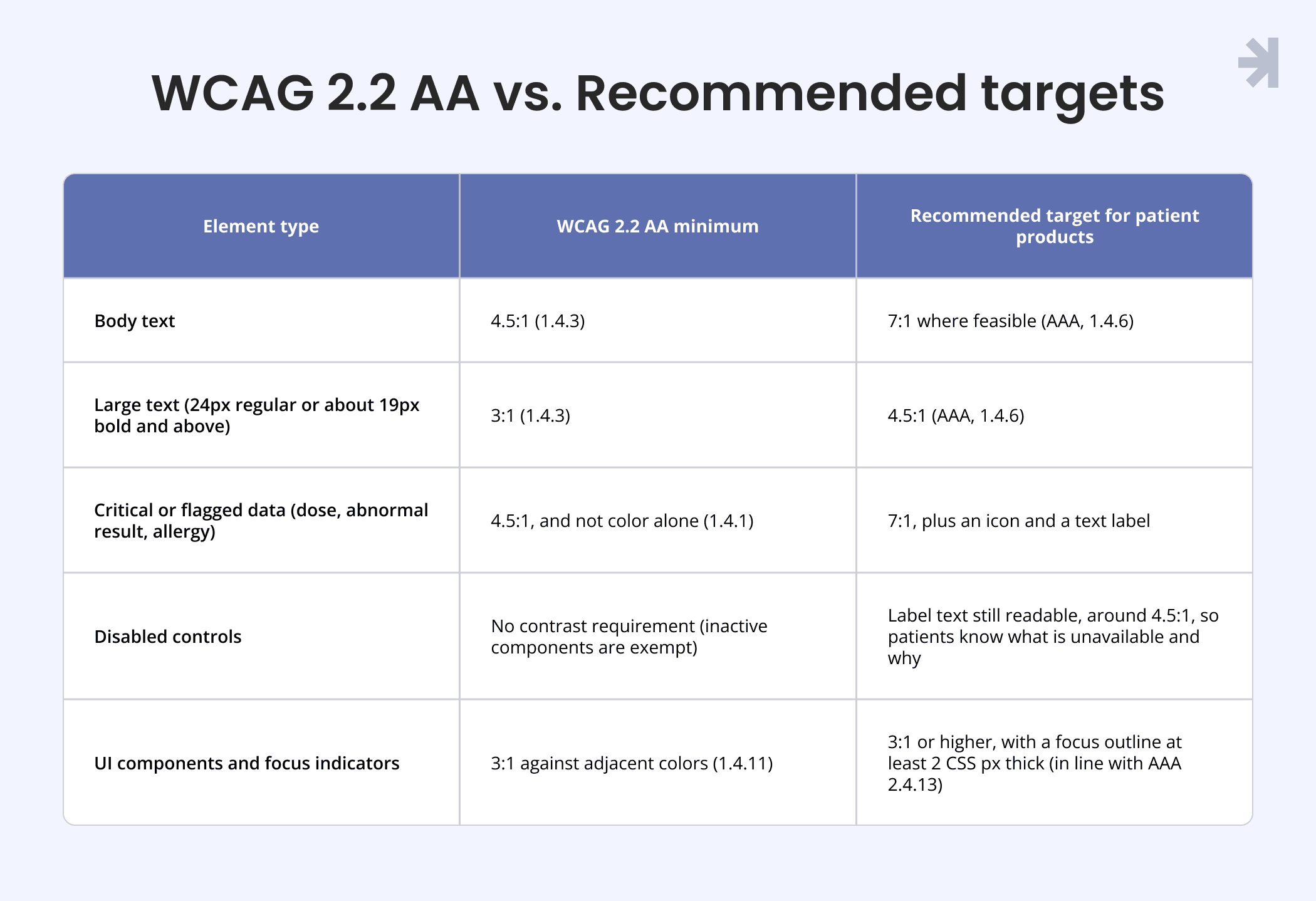
WCAG AA's 4.5:1 minimum for body text is a floor; healthcare products that carry critical information, such as a dosage, an abnormal lab flag, or an allergy warning, should design to the stricter AAA level of 7:1 where feasible. Color contrast accessibility is not only about the ratio, though. It's also about where contrast quietly drops.
Anastasiia Mozharovska
"Light grey text on white that passes the contrast check but is still hard to read. For people with low vision, that last one is one of the most common problems."
Three rules matter most:
- Never signal meaning by color alone. WCAG 1.4.1 already requires this, and it matters more in healthcare. An abnormal lab flag needs an icon and a text label such as "High," not just red text. Add a word, an icon, a pattern.
- Use color-blind-safe palettes. Most color blindness is red-green, so the classic red "abnormal" and green "normal" result in a lab report can look exactly the same.
- Test the forgotten states. Disabled buttons, placeholder text, secondary text, and focus outlines are where teams most often fall below a readable level.
The table separates what WCAG 2.2 AA requires from the target we recommend for patient-facing products. The right-hand column is design guidance, not a WCAG requirement.
What font size keeps healthcare content readable for aging eyes?
Use 16px (1rem) as the practical floor for body text in a patient-facing product, and 16 to 18px where the layout allows. WCAG doesn't set a minimum font size at all, so this floor comes from design practice and from a population that skews toward reduced near vision. Font size accessibility also depends on how text behaves when patients enlarge it.
In Anastasiia's view, a modern, minimal style is not the enemy here. Whitespace actually helps people with low vision, because it separates things. The problem is the habits that come with it.
Anastasiia Mozharovska
"The enemies are the habits that come with 'modern': low-contrast gray text, ghost buttons, icon-only actions, placeholder text used as a label, 14px body text because it looks elegant on a big screen."
The practices that make type hold up:
- Use scalable units (rem or em, not fixed px) so that WCAG 1.4.4 "resize text to 200%" works with the patient's own browser and phone settings.
- Leave room for spacing. WCAG 1.4.12 requires layouts to survive line height of 1.5, paragraph spacing of 2 times the font size, and letter and word spacing of 0.12 and 0.16 times the font size. Design with roughly 1.5 line height from the start.
- Keep lines short. AAA criterion 1.4.8 suggests no more than 80 characters per line; long lines are hard to track with low vision.
- Avoid thin weights and long all-caps. Light font weights fade on blurred vision, and all-caps strings are slower to read.
As with contrast, the recommended sizes below are design guidance for this population, not WCAG requirements.
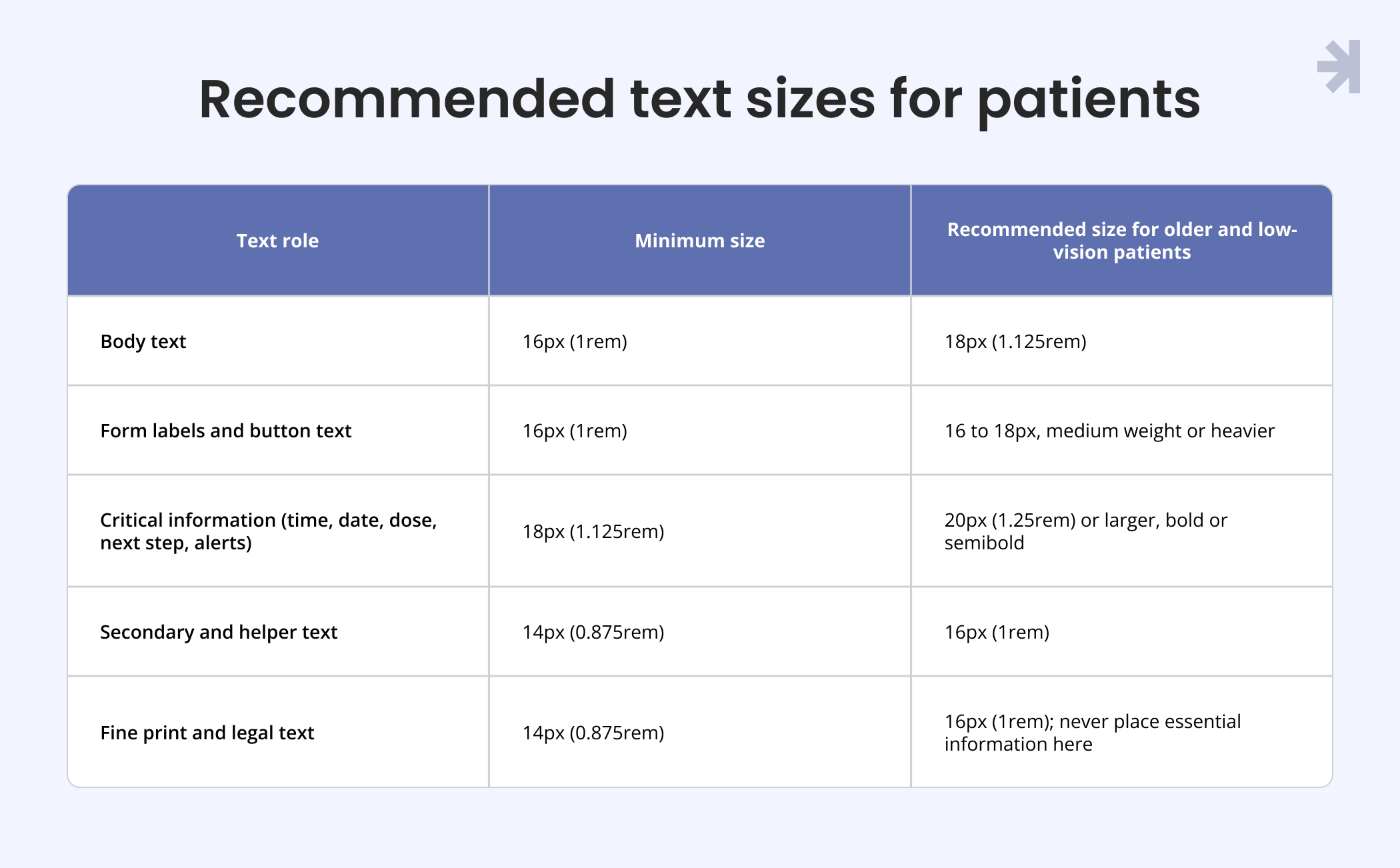
Anastasiia Mozharovska
"You can keep a clean visual style and still have 16 to 18px body text, solid buttons with words on them, and labels that stay visible. The trick is to put those decisions into the design system as tokens and components, so nobody has to fight for them on every screen."
If the design system is built for enlarged text from the start, the brand stays and the user wins. And the biggest text on the screen should carry the most important information.
Anastasiia Mozharovska
"In healthcare that's usually a time, a date, a dose or a next step. It should never be the smallest gray line under a large banner."
What do product teams get wrong when designing for vision loss and aging?
Product teams most often treat accessibility as a score to reach, a plugin to install, or a palette to pass, rather than a set of tasks real patients must finish. Anastasiia sees three mistakes again and again.
Mistake 1: Treating the audit score as the finish line
The audit score is useful, but it only covers what can be tested rule by rule.
Anastasiia Mozharovska
"The score measures what a machine can measure."
What to do instead: after the audit, sit with three or four real users and watch them do the one task that matters most. In a patient product, that's usually booking an appointment, requesting a refill, or reading a test result.
Mistake 2: Thinking a widget or a plugin will fix it
Personalization tools let patients adjust text size or contrast, which is why teams sometimes treat them as the whole solution. Anastasiia worked on one, and she is candid about its limits.
Anastasiia Mozharovska
"A personalization widget is genuinely useful: it lets people choose bigger text, a contrast mode or a reading guide that fits their eyes. But it works on top of your product, not instead of it. If the base is broken, the widget makes a broken page bigger."
What to do instead: build an accessible base first, then let personalization tools do what they're good at. The same logic applies to motion: if people need a button to turn off your animations, maybe they shouldn't be on in the first place.
Mistake 3: Communicating with color and faint text alone
Status colors and faint secondary text are the easiest habits to adopt and the first to fail with aging eyes.
Anastasiia Mozharovska
"Red for error, green for success, light gray for 'less important'. For many older eyes those differences just disappear."
**What to do instead: **every status gets a word and an icon, and anything the user must read gets real contrast, not the minimum that passes.
How can a team test a patient app for low vision before release?
A team can test a patient app for low vision by running its key flows under the settings patients actually use: 200% zoom, the largest phone text size, dark mode, and high contrast. This check catches audit-only thinking, widget reliance, and color-only signals at once. Testing with every setting turned up is Anastasiia's one piece of advice for any team building a patient-facing product for the first time:
Anastasiia Mozharovska
"Before every release, turn everything up. Browser zoom to 200%, phone text to the largest size, dark mode on, high contrast on. Then try to book an appointment and read a test result. If the layout survives that, you are already ahead of most products."
Run this pre-release check on every key patient flow:
- Set browser zoom to 200%.
- Set phone text to the largest size.
- Turn on dark mode, then high contrast mode.
- Complete the core tasks end to end: book an appointment, request a refill, read a test result.
- Fix anything that overflows, disappears, loses contrast, or moves off-screen before release.
How MagicFlux designs patient products for low-vision and older users
MagicFlux, a UI/UX design agency for complex SaaS and healthcare products, designs patient-facing apps and platforms with accessibility built into the UX process from the first wireframe, not added after a scan. The practices in this article (contrast targets for critical data, scalable type, needs-based layouts, recoverable errors) live in the design system as tokens and components and get tested with real users.
One example is Carely, an accessible patient portal and mobile app. Our team designed it with WCAG Level AA requirements in mind from the beginning and built reusable components with accessible contrast, keyboard navigation, and screen reader support. According to the case study, the work led to 30% faster completion of key patient tasks, 25% less time spent finding health information, and 35% fewer accessibility issues across core journeys.
We provide design guidance and usability work; we don't issue legal or ADA (Americans with Disabilities Act) compliance certification, and your own counsel is the right source for a legal position. If older or low-vision patients still struggle with your product after an audit, talk to our healthcare UX team about where your key patient tasks break down.
Final thoughts
Going beyond WCAG for low-vision and older patients means treating conformance as the starting line and then designing for how patients actually see, move, and decide. In practice: design for combined needs instead of diagnoses, put messages next to what caused them, give critical data the strongest contrast and the largest type, never let color work alone, make every action recoverable, and test at 200% zoom with real users before every release.
The need will only grow. The CDC notes that the number of Americans aged 40 or older with uncorrectable vision impairment is predicted to more than double by 2050. And these needs aren't limited to older patients.
Anastasiia Mozharovska
"Accessibility isn't only about older users, people of every age need these tools. Sometimes only for a while: after eye surgery, with a migraine, or reading a phone in the sun."
Build spacing that users can make bigger without breaking the page, short lines, and simple words into the product itself. That helps the patient with low vision today and everyone who will need it tomorrow.

What is visual accessibility, and how is it different from WCAG conformance?
Visual accessibility is designing a product so people with any level of vision can see, read, and act on what is on screen. WCAG conformance means meeting a defined set of testable success criteria. Conformance is the minimum; visual accessibility asks whether a real patient with reduced vision can actually complete the task.
What is low vision, and how is it different from blindness?
Low vision is a vision problem that makes everyday activities hard, while some usable vision remains. Vision may be blurred, patchy, or limited to the center or the edges. Many people with low vision use zoom, larger text, and higher contrast rather than a screen reader.
What color contrast ratio should a healthcare product use for critical information?
WCAG 2.2 AA requires at least 4.5:1 for normal text and 3:1 for large text. For critical information such as doses, abnormal results, and allergy warnings, a target of 7:1 (the AAA level) is a stronger design choice where feasible. Critical information should also carry an icon and a text label, never color alone.
What is the minimum font size for accessibility in a patient-facing product?
WCAG doesn't define a minimum font size; it requires that text can be resized to 200% without breaking. For patient-facing products, 16px (1rem) is a practical floor for body text, and 16 to 18px is better for older and low-vision users. Use scalable units so patients' own text settings work.
Do WCAG-conformant products automatically work for older or low-vision patients?
No. A product can pass every WCAG AA criterion and still fail when patients enlarge text, switch on high contrast, or rely on labels and alt text that exist but say nothing useful. Testing key tasks with real older and low-vision users is the way to close that gap.
What tap target size should a healthcare app use for older patients?
WCAG 2.2 AA requires pointer targets of at least 24 by 24 CSS pixels (success criterion 2.5.8). For older patients with reduced fine motor control, 44 by 44 CSS pixels, the AAA level in criterion 2.5.5, is a safer design target. Leave space between targets and avoid gestures like drag-and-drop or tiny swipes as the only way to act.
Is an accessibility widget enough to make a patient portal accessible?
No. An accessibility widget or overlay lets users adjust text size, contrast, or motion, but it works on top of the product, not instead of it. If the underlying layout, labels, and contrast are broken, the widget only enlarges a broken page, so the accessible base has to be built into the product itself.
How do you test a patient app with low-vision users?
Recruit participants from the real age range, let them use their own devices with their usual text size, zoom, and contrast settings, and plan fewer tasks per session than usual. Focus each session on the tasks that matter most, such as booking an appointment or reading a test result, and watch where people slow down, zoom, or give up.